本文最后更新于98 天前,其中的信息可能已经过时,如有错误请发送邮件到489410144@qq.com
一、下载安装Dify Desktop
1. 下载
打开官网,下载并安装Download for Windows-AMD64。
2. 安装
2.1 双击exe文件安装;
2.2 出现报错(未报错跳过)
Your version of Windows Subsystem for Linux (WSL) is too old.Run the command below to update or for more information, visit...点击restart,下载最新版,自动重启软件。
3. 配置镜像源
点击设置,Docker Engine,在配置中添加
"registry-mirrors": [
    "https://registry.cn-shenzhen.aliyuncs.com",
    "https://mirror.aliyuncs.com",
    "https://docker.nju.edu.cn",
    "https://docker.mirrors.sjtug.sjtu.edu.cn"
]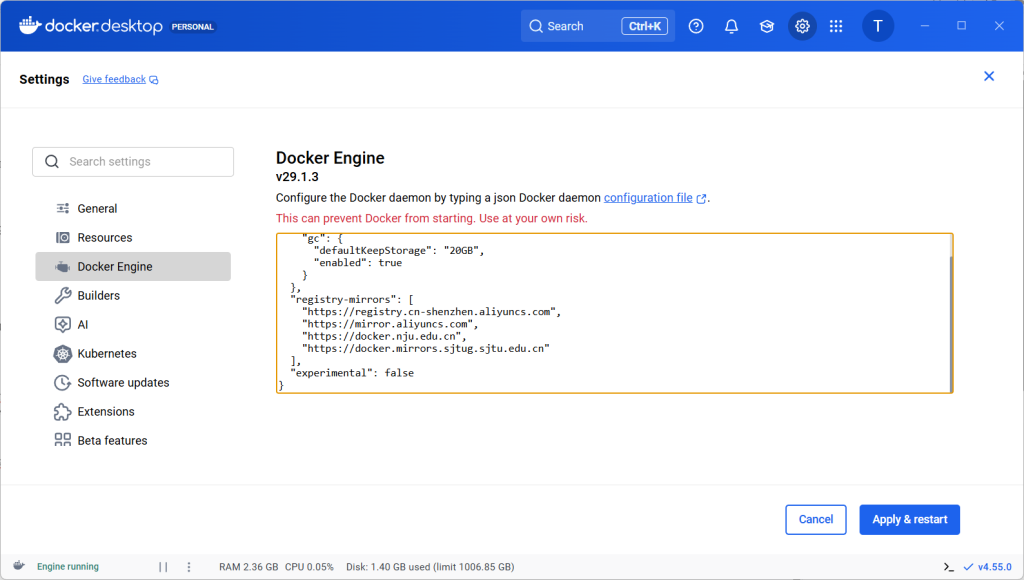
保存并运行。
二、Dify部署
1. 获取源码
git clone https://github.com/langgenius/dify.git
cd dify-main/docker/
2. 配置环境变量,并打开
cp .env.example .envEXPOSE_NGINX_PORT=80 # 服务端口
APP_SECRET_KEY= # 建议设置复杂密码
DB_PASSWORD= # 数据库密码3. 启动Dify服务
docker目录下执行
docker compose up -d注:出现报错(未报错跳过)
Error response from daemon: authentication required - email must be verified before using account
// 重新登陆docker即可
docker login
4. 访问Dify管理界面
http://localhost:805. 管理
// 停止运行中的服务
docker compose down
// 编辑.env文件
EXPOSE_NGINX_PORT=8088
// 重新启动
docker compose up -d
三、Ollama
1.下载并安装
打开官网,下载并双击安装ollama
注:出现报错
// ollama : 无法将“ollama”项识别为 cmdlet、函数、脚本文件或可运行程序的名称。请检查名称的拼写,如果包括路径,请确保路径正确,然后 再试一次。 所在位置 行:1 字符: 1 + ollama + ~~~~~~     + CategoryInfo          : ObjectNotFound: (ollama:String) [], CommandNotFoundException     + FullyQualifiedErrorId : CommandNotFoun

// 确认是否已安装
C:\Users\WZ\AppData\Local\Programs\Ollama
// 将该目录添加至环境变量系统变量中的Path
// 打开新的命令行,输入
ollama
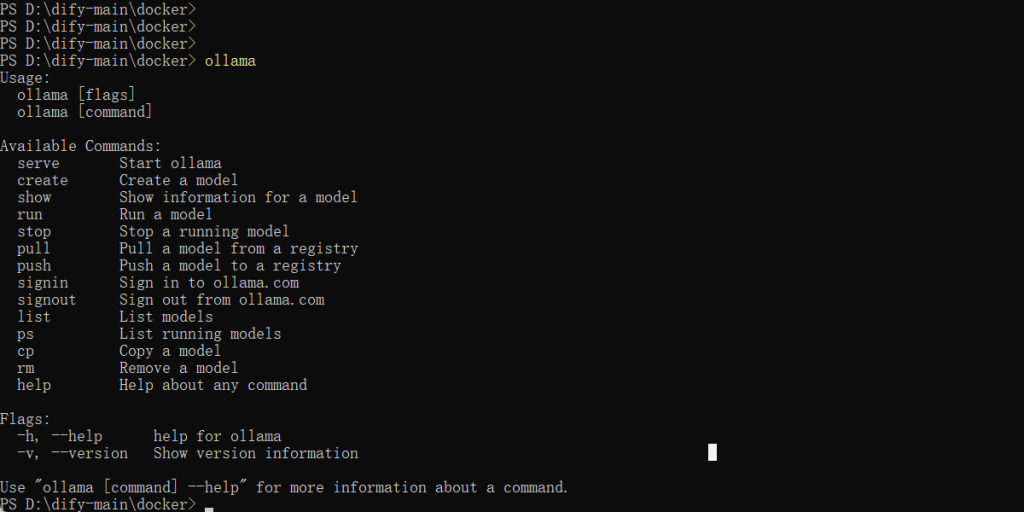
输出这些内容表示无误。